If you have ever tried to manually scrub through a 90-minute podcast looking for the three moments worth turning into a Reel, you already understand why Opus Clip exists. Long-form-to-short-form repurposing is one of the most tedious jobs in content marketing, and it is exactly the kind of pattern-matching, repetitive task that AI is genuinely good at.
We spent several weeks running our own long-form recordings — talking-head podcasts, a webinar, and some gaming footage — through Opus Clip to see whether the clips it surfaces are worth publishing, or whether it’s another tool that generates mediocre 30-second cuts you still have to sift through by hand. The short version: it’s genuinely useful for talking-head and interview content, the Virality Score is a helpful triage tool rather than a gimmick, and ClipAnything extends its reach into footage older clipping tools can’t touch. It’s not a “set it and forget it” machine, though, and the pricing rewards planning ahead more than impulse sign-ups.
Below is our full breakdown of what Opus Clip does well, where it falls short, what it actually costs in 2026, and how it stacks up against Vizard and Descript. If you want to skip straight to trying it yourself, you can try Opus Clip with its free tier before spending anything.
AnalyzeBench Score: 8.3 / 10
Best for: Podcasters, coaches, webinar hosts, and talking-head YouTubers who need to turn long recordings into a steady stream of short-form clips without hiring an editor.
What we loved:
- ClipAnything can find moments using plain-language prompts, not just transcripts, so it works on gaming, sports, and wordless footage.
- The Virality Score gives you a fast, reasonably reliable way to triage dozens of candidate clips instead of watching every single one.
- Auto-reframe consistently tracks the active speaker into a clean 9:16 frame without manual keyframing.
- Animated captions are accurate out of the box and rarely need more than light touch-ups.
- The free plan is a real, no-credit-card way to test output quality before you commit to a paid tier.
Watch out for:
- Credits are measured in source-video minutes, so a handful of long uploads can burn through a monthly allowance fast.
- Some users report a rockier cancellation flow and billing surprises after downgrading — read the fine print before you subscribe.
- The Starter plan feels more like an extended trial than a plan you’d want to live on long-term.
- Output quality on noisy audio, heavy accents, or multi-speaker crosstalk is noticeably less consistent.
- Credits expire (60 days on monthly plans, 12 months on annual), so unused capacity doesn’t bank forever.
What makes Opus Clip different
The AI clipping space is crowded — Vizard, Munch, Klap, Descript’s own clip tool, and a dozen smaller players all promise the same basic pitch: upload a long video, get short clips back. What separates Opus Clip is how it decides which moments are worth clipping in the first place. Rather than relying purely on transcript keywords, its engine was trained on a large library of clips that actually performed well on social platforms, and it uses that training to score candidate segments on hook strength, pacing, emotional arc, and topical relevance.
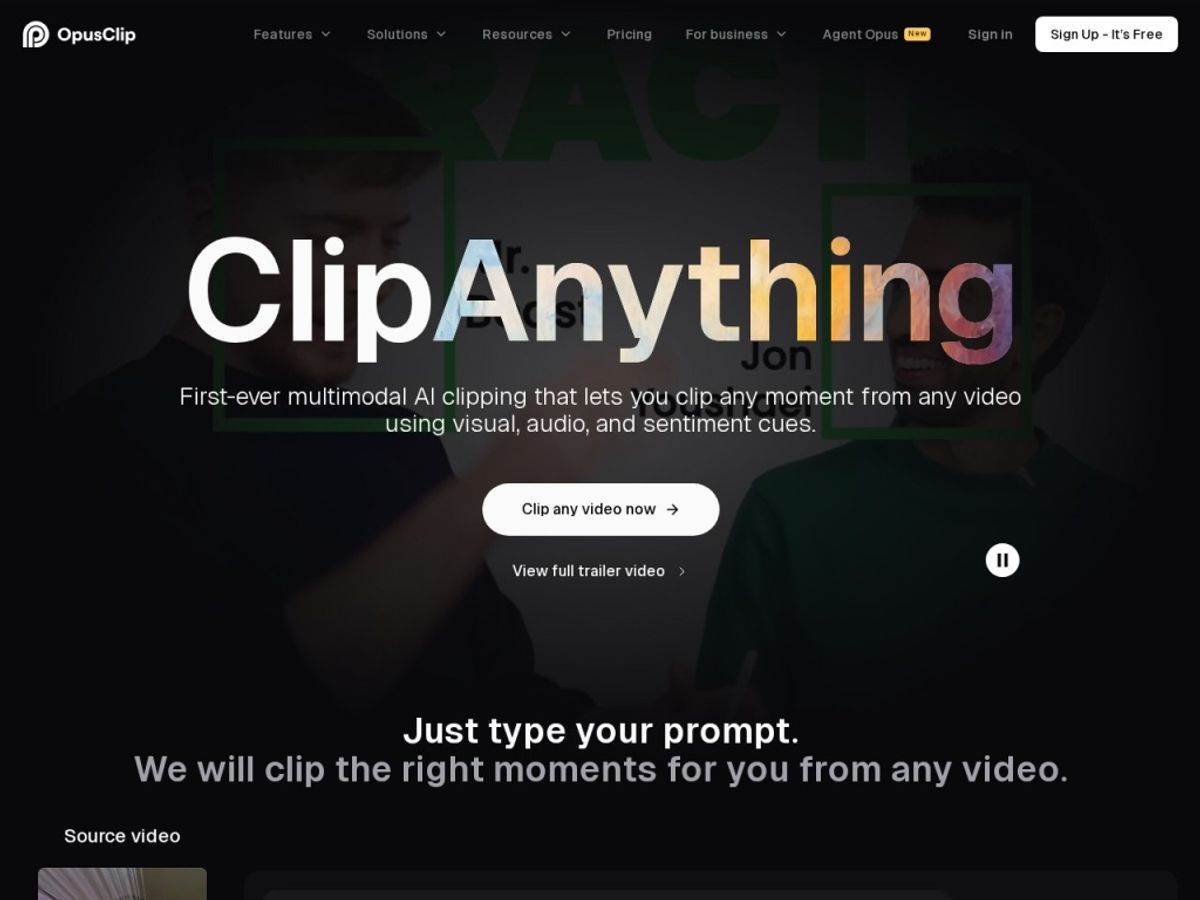
The second differentiator is ClipAnything, which moves Opus Clip beyond talking-head content. Because it analyzes visual cues, audio sentiment, and facial expressions together — not just what was said — you can prompt it with something like “find every moment someone laughs” and it will pull matching segments from footage with no useful transcript at all, like gameplay or sports highlights. That’s a genuinely different capability from most transcript-first competitors, and the main reason we’d point creators with non-talking-head footage toward Opus Clip specifically.
The third piece is scale. With reportedly more than 10 million users and well over 170 million clips generated, Opus Clip has had a lot of real-world usage to refine its scoring model against. That doesn’t guarantee every clip it hands you is a hit, but the underlying model has more signal to learn from than a brand-new entrant. If you want to see whether that scale translates into better output for your own footage, the fastest way is to try Opus Clip on the free tier and judge for yourself.
The core features
Opus Clip’s feature set breaks down into a few core jobs: finding the good moments, reformatting them for vertical platforms, making them watchable without sound, and (on higher tiers) getting them published. Here’s how each piece actually performs in practice.
Auto Clipping & ClipAnything
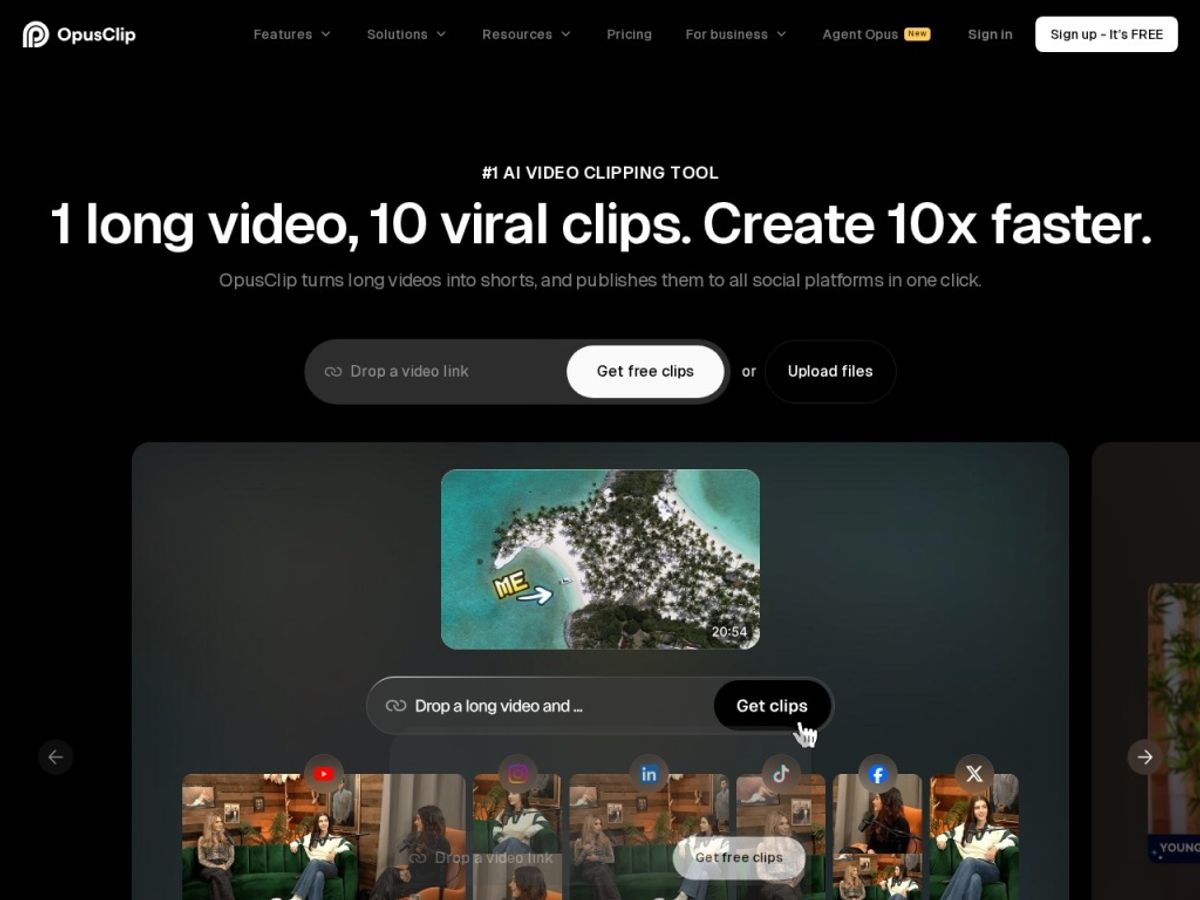
Upload a long video and Opus Clip’s default engine scans the transcript and audio/visual signal to propose a batch of clip candidates, each scored and ranked. ClipAnything layers a prompt-based mode on top: type an instruction — “find the funniest reactions” — and the model searches visual, audio, and emotional signals rather than transcript text alone. In our testing, ClipAnything was noticeably better at surfacing usable moments from a screen-recorded product demo with long silent stretches.
Virality Score
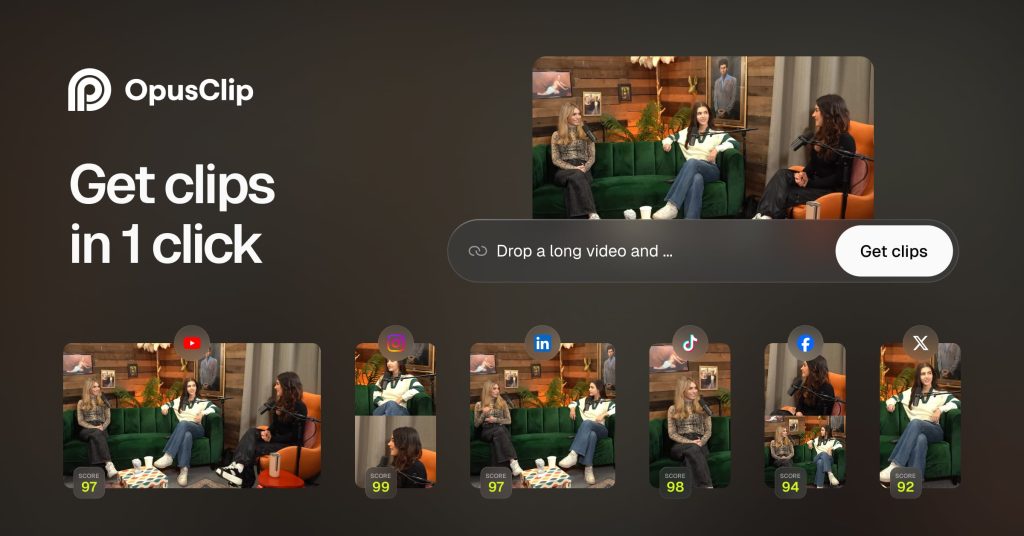
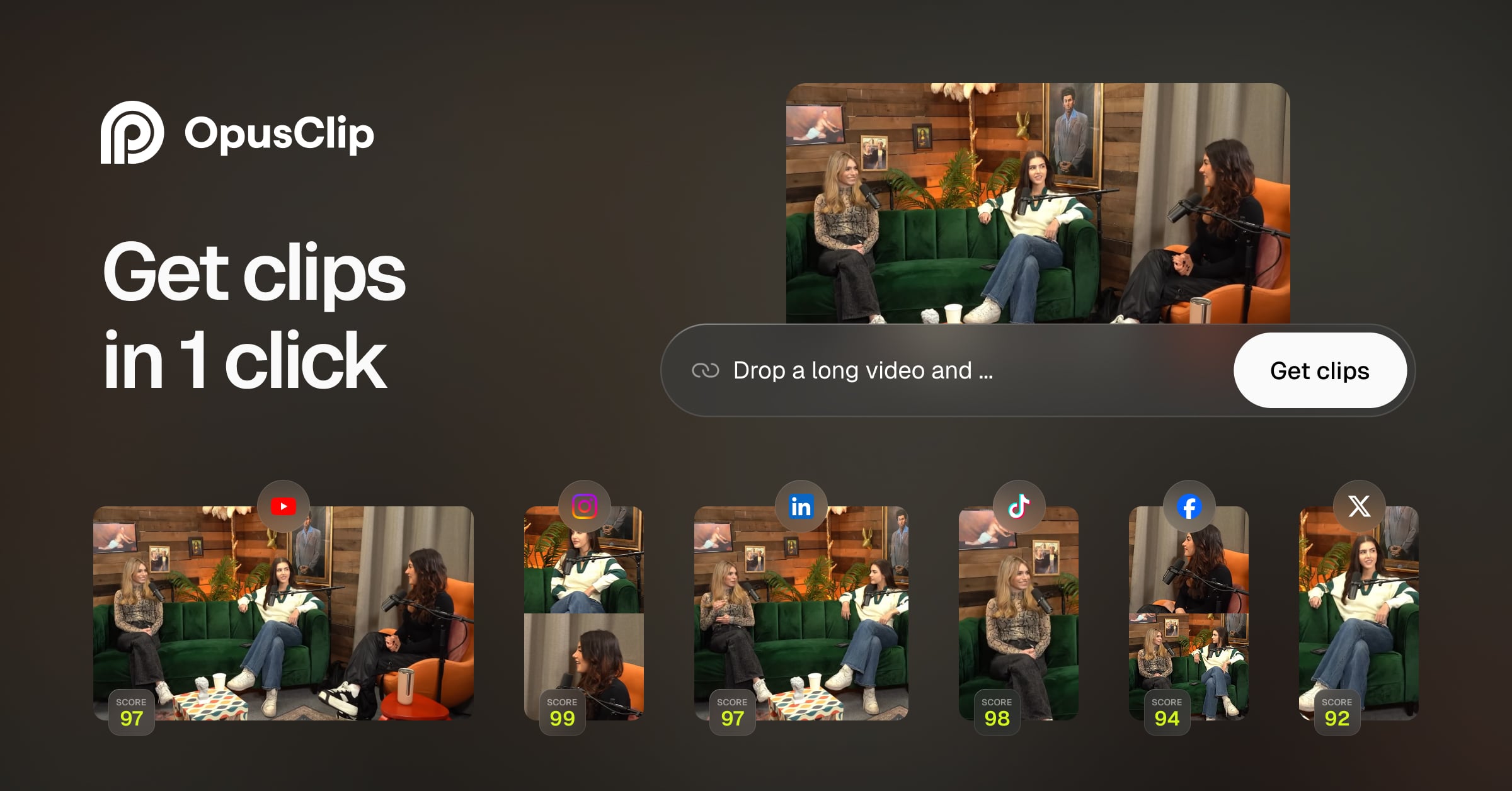
Every proposed clip gets a 0–100 Virality Score based on hook strength, emotional flow, perceived value, and trend alignment. It’s not a guarantee of performance — nothing can promise that — but as a triage tool it saved us real time. Sorting by score and reviewing only the top third of candidates got us to a usable shortlist far faster than watching everything in order.
Auto-Reframe
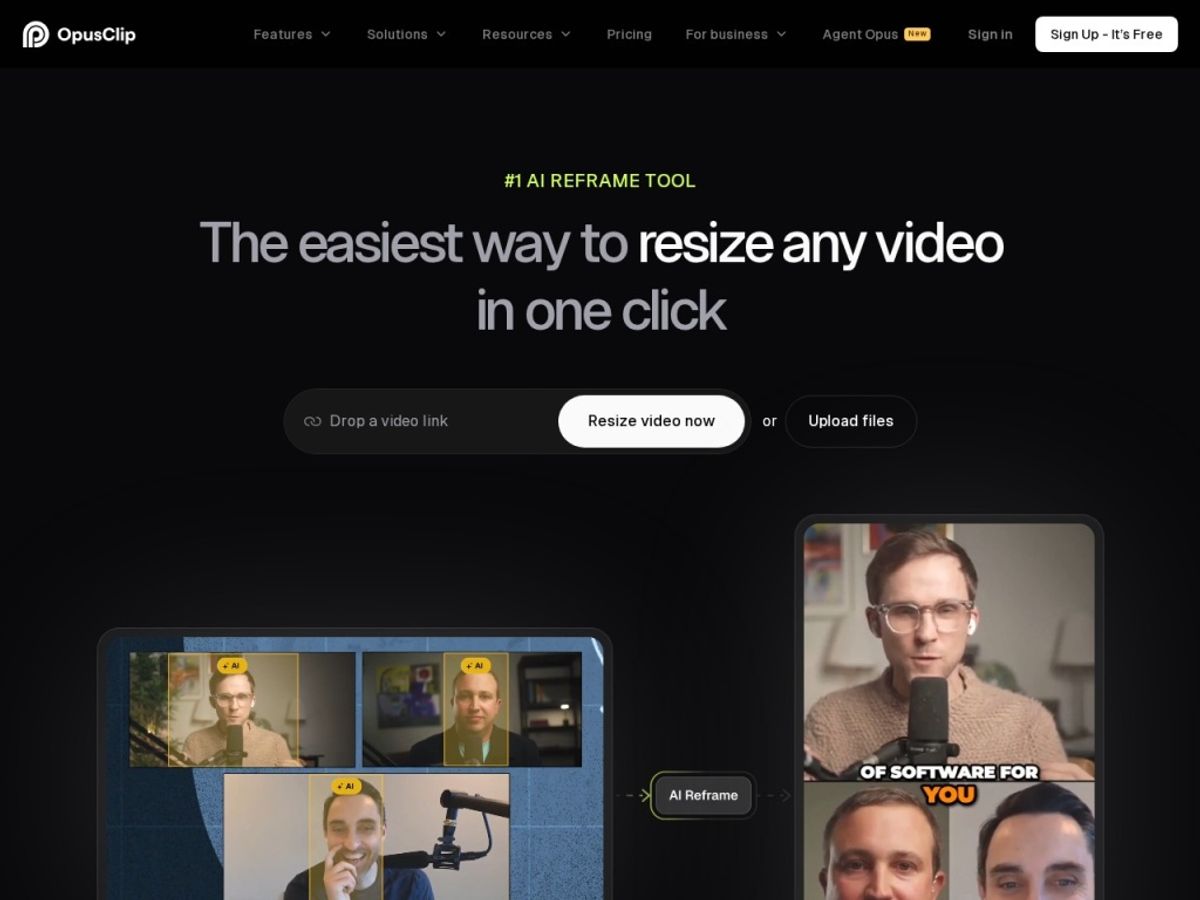
Landscape footage gets automatically reframed into 9:16, 1:1, or other vertical-friendly ratios, with the crop following whoever is speaking. This worked well for single-speaker and two-person setups, but got shakier in group panels with four or more people on screen, where the crop occasionally lagged behind who was talking.
Animated Captions
Captions are generated automatically in a range of animated styles, with strong accuracy on clear English audio. Heavy accents, overlapping speakers, and noisy backgrounds reduced accuracy somewhat, matching what other reviewers report.
AI B-roll
Opus Clip can insert relevant B-roll and on-screen graphics automatically to break up long talking-head segments. It’s a nice touch for filling dead air, though the suggested B-roll worked best as a starting point to swap out rather than a finished layer — generic stock-style footage, not something tailored to your brand.
Scheduling & Publishing
Starter and Pro tiers can schedule and auto-publish finished clips directly to YouTube Shorts, TikTok, and Instagram from inside the platform, removing a genuinely annoying manual step if you publish to multiple platforms daily.
Plans & pricing
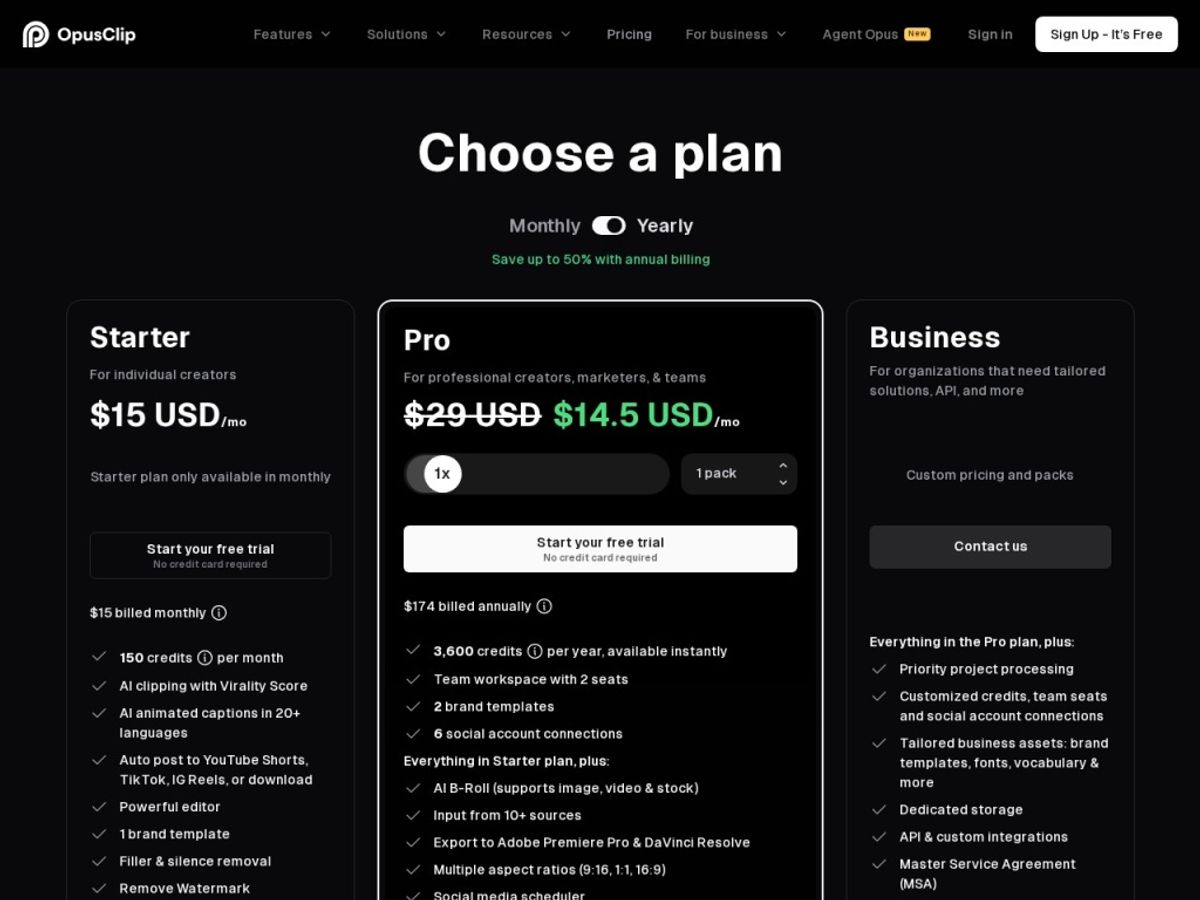
Opus Clip’s pricing is credit-based, where credits roughly correspond to minutes of source video processed rather than minutes of finished output. Published prices and credit allotments have shifted more than once as the product evolved, so treat the numbers below as a snapshot rather than gospel — always confirm current pricing on Opus Clip’s own pricing page before you subscribe.
Free
The free plan gives you roughly 60 processing credits per month with no credit card required. It’s a legitimate way to test clip quality, but exports carry a watermark and reportedly disappear after a few days, so it’s best used for evaluation rather than production.
Starter
Starter lands around $15/month (cheaper annually) and unlocks roughly 150 credits per month, watermark-free exports, longer project storage, Virality Scores, and the fuller set of clipping modes, plus basic auto-posting. For a solo creator publishing a handful of clips a week, this tier is often enough — though several reviewers describe it as feeling more like an extended trial than a plan you’d scale a business on.
Pro
Pro runs around $29/month, or a larger annual credit allotment (roughly 3,600 credits per year) if you commit annually, adding higher processing volume, more brand customization, and expanded publishing controls. This is the tier we’d recommend for anyone clipping multiple episodes a week across several channels. A custom Business tier exists above Pro for agencies managing multiple clients, priced on request.
Whatever tier fits your volume, the safest way to confirm today’s exact numbers is to check the live pricing page yourself — you can try Opus Clip and see current plan details before entering payment information.
How to get the best value
Because credits are tied to source-video minutes rather than output clips, the biggest lever for value is trimming your footage before upload — cut dead air, long intros, and off-topic tangents, and you’ll stretch your monthly allotment considerably further. Annual billing on Starter or Pro is meaningfully cheaper per month than paying monthly, so if you know you’ll be clipping consistently for the next several months, the annual commitment usually pays for itself within a few cycles.
Use the free plan deliberately before you pay for anything: run a representative video through it and judge whether the clip selection and caption accuracy match your content style. Talking-head podcasts and interviews tend to see the best results; heavily accented audio, group panels, and noisy environments require more manual cleanup regardless of tier. Keep an eye on credit expiration, too — monthly credits typically expire within 60 days and annual credits within 12 months, so banking unused credits for “someday” isn’t reliable.
Watch: Opus Clip in action
If you want to see the workflow before uploading your own footage, these two videos walk through the interface end to end — from uploading a long recording to reviewing scored clips and exporting a finished short.
Opus Clip vs alternatives
Opus Clip isn’t the only serious option in this category, and it isn’t the best fit for every workflow. Vizard leans harder on transcript-based selection — you pick clips by highlighting text in a transcript editor rather than scrubbing a timeline — which makes it fast and precise for talk-heavy interviews and webinars, and its multilingual caption support is a step ahead of Opus Clip’s. Descript takes a completely different approach: it’s an editor first, with clipping bolted on, so if you’re already editing your long-form content inside Descript, generating clips is a one-click extension of a workflow you’re already in rather than a separate tool to learn.
| Tool | Best for | Standout strength | Free option |
|---|---|---|---|
| Opus Clip | Talking-head podcasts, webinars, and non-transcript content (gaming, sports) | ClipAnything prompt-based clipping + Virality Score triage | Yes, watermarked, credit-limited |
| Vizard | Interview and webinar creators who prefer transcript-based selection | Strong multilingual captions and brand kit | Yes, limited monthly minutes |
| Descript | Creators who already edit long-form video in Descript | Integrated edit-and-clip workflow in one app | Yes, limited transcription minutes |
Our verdict: if your source footage has genuine visual or non-verbal content — sports, gaming, physical demonstrations — Opus Clip’s ClipAnything is the clearest differentiator among the three, and we’d default to it there. If you’re purely working from talk-heavy interviews and want the tightest transcript-driven editing experience, Vizard is worth a side-by-side trial. And if your team already lives inside Descript for the long-form edit itself, there’s a real convenience argument for staying in that ecosystem rather than adding a fourth tool.
Output quality & value
On footage that plays to its strengths — solo or two-person talking-head recordings with clear audio — Opus Clip’s clip selection was consistently good enough to publish with only minor caption corrections. The Virality Score ranking matched our gut sense of “which clip would we have picked manually” often enough that we trusted it as a first-pass filter rather than double-checking every suggestion.
Where the value proposition gets murkier is on the lower tiers and tougher source material. Starter’s credit ceiling is easy to hit if you process more than a couple of long episodes a month, pushing many serious users toward Pro faster than the marketing implies. On noisy, multi-speaker, or heavily accented audio, the gap between Opus Clip’s output and a human editor’s widens noticeably — budget time for caption fixes and reframe corrections there, not a fully hands-off result.
Who should use it — and who should not
Opus Clip is a strong fit for podcasters, coaches, course creators, and B2B webinar hosts who already have a steady stream of long-form recordings and need a reliable way to turn them into short-form content without hiring a dedicated editor. It’s also a good fit for gaming and sports creators specifically because of ClipAnything’s ability to find moments beyond spoken words — a real gap in most transcript-only competitors.
It’s a weaker fit if your footage is mostly noisy, multi-speaker, or in a language and accent the model handles less reliably — you’ll spend enough time on manual cleanup that the time savings shrink. It’s also not the right choice if you only occasionally need a handful of clips a year; the free tier’s watermark and short storage window make it impractical for anything beyond evaluation, and the paid tiers assume regular, ongoing volume.
Honest limits
No AI clipping tool eliminates human review entirely, and Opus Clip is no exception — every batch of auto-generated clips still needs a human pass to catch the occasional miscropped frame, awkward cut point, or caption error. Some users have also reported friction around billing and cancellation, including charges continuing briefly after a plan change, so read the account settings and cancellation policy carefully before committing to a paid tier, and keep an eye on your billing statements in the months after you subscribe.
Opus Clip discount codes & deals
We don’t publish “secret” promo codes because, frankly, most of the ones floating around the web for tools like this are expired, fake, or recycled clickbait. The one deal we can confirm reliably is the standard one: committing to an annual plan brings the effective monthly price down noticeably compared to paying month to month, and that discount is applied automatically at checkout rather than through a separate code. If you’re fairly confident you’ll be clipping content consistently for the next several months, the annual option is the legitimate way to save. You can check current plan pricing and any active promotions directly by clicking through to Try Opus Clip.
Frequently asked questions
Is Opus Clip actually free?
Yes, there’s a genuine free tier with no credit card required, offering a limited number of monthly processing credits. Exports on the free plan include a watermark and are typically only stored for a short window, so it’s best used to evaluate quality rather than for ongoing production.
How do Opus Clip credits work?
Credits are generally tied to minutes of source video processed rather than minutes of finished output, so a single one-hour upload can use up a meaningful chunk of a monthly allowance. Monthly-plan credits typically expire within roughly 60 days, and annual-plan credits within about 12 months.
Does Opus Clip work on non-talking content like gaming or sports?
Yes — this is where ClipAnything specifically adds value. Because it analyzes visual, audio, and emotional signals together rather than relying purely on a transcript, it can identify relevant moments in footage that has little or no spoken dialogue.
What is the Virality Score, and can I trust it?
It’s a 0–100 rating assigned to each generated clip based on factors like hook strength, emotional flow, and trend alignment, trained on a large library of previously successful clips. It’s a useful triage tool for prioritizing which clips to review first, but it is a prediction, not a guarantee — you should still watch and judge the top-ranked clips yourself.
Can Opus Clip publish directly to TikTok, Instagram, and YouTube Shorts?
On paid tiers, yes — there’s built-in scheduling and auto-publishing to several major short-form platforms directly from the dashboard, which removes a manual export-and-upload step.
How accurate are the automatic captions?
On clear, single-speaker English audio, accuracy is strong and usually needs only minor touch-ups. Accuracy drops on heavy accents, overlapping speakers, or noisy environments, so budget some review time for that kind of source material.
What’s the biggest complaint people have about Opus Clip?
Beyond output-quality variance on tough audio, the most consistent complaint across independent review platforms relates to billing and cancellation friction — some users report charges continuing briefly after downgrading or canceling. It’s worth reviewing the cancellation policy before subscribing and monitoring your first couple of billing cycles.
How to get great results from any AI clipping tool
Start with clean source audio. Every AI clipping and captioning tool, Opus Clip included, produces meaningfully better results when the source recording has minimal background noise and clearly separated speakers.
Trim before you upload. Since processing credits are typically tied to source-video length, cutting dead air, long intros, and off-topic tangents before uploading stretches your monthly allowance and speeds up processing.
Treat AI scoring as a first filter, not a final answer. Virality or engagement scores are a helpful way to prioritize review time, but they’re predictions based on historical patterns — always watch your top candidates before publishing.
Always do a caption pass. Even the best automatic captioning has an error rate, especially with names, jargon, and accents — a quick manual review before publishing avoids embarrassing typos on a public post.
Match the tool to your content type. Transcript-driven tools excel at talk-heavy interviews and webinars; multimodal tools like Opus Clip’s ClipAnything are worth the extra look if your footage includes visual action, gameplay, or wordless moments.