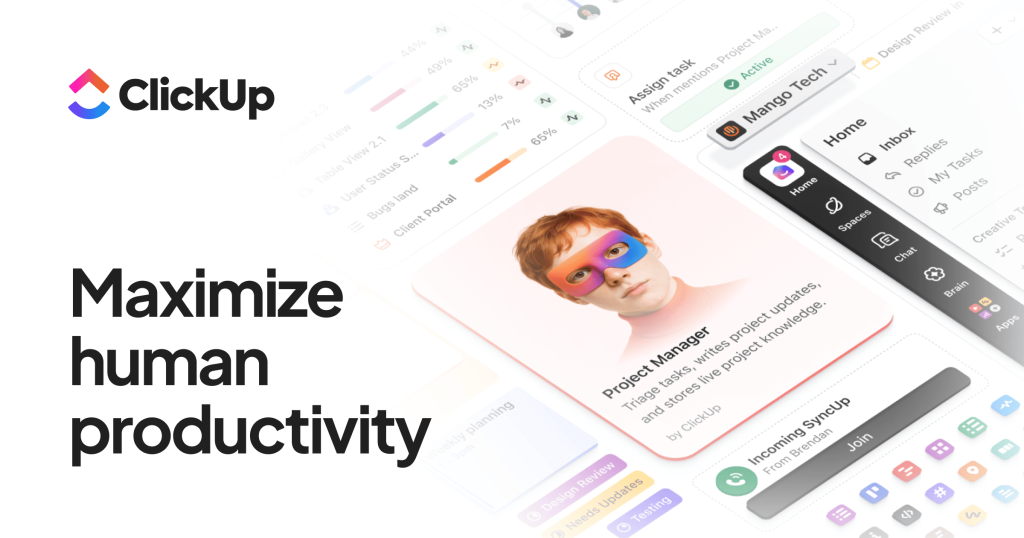
If you have ever felt like your team is drowning in a dozen different apps — one tool for tasks, another for docs, a third for chat, a spreadsheet for tracking, and a whiteboard app nobody remembers to open — then you have already met the problem ClickUp is trying to solve. ClickUp bills itself as “the everything app for work,” an all-in-one platform that folds project management, documents, goals, dashboards, time tracking, and AI into a single workspace. It is one of the fastest-growing productivity tools of the last few years, used by millions of teams and rated highly on review sites like G2 and Capterra.
But “does everything” is a promise that cuts both ways. In this in-depth review we look at what ClickUp genuinely does well, where it frustrates real users, how the pricing actually shakes out once you add AI, and who should — and should not — make it their home base. Ready to explore it yourself? You can Try ClickUp free while you read along.
AnalyzeBench Score: 8.7 / 10
Best for: Growing teams and power users who want to consolidate several separate subscriptions into one deeply customizable platform — and who have someone willing to own the setup.
What we loved:
- An enormous feature set (tasks, docs, whiteboards, goals, dashboards, chat, time tracking) under one roof
- A genuinely usable free plan with unlimited tasks and unlimited members
- 15+ ways to view the same work, from list and board to Gantt, calendar, and mind map
- Strong value per dollar compared with Monday.com and Asana at similar tiers
- Built-in time tracking and billable hours, which rivals often lock away or omit
- ClickUp Brain adds AI summaries, writing help, and cross-workspace search
Watch out for:
- A steep learning curve — it is powerful once configured, not plug-and-play
- Occasional performance lag, especially on heavy dashboards and large workspaces
- AI is a paid add-on on top of your plan, not included in the base price
- Docs and whiteboards are “good enough” rather than best-in-class
- The sheer number of settings can overwhelm smaller or less technical teams
What makes ClickUp different
Most project management tools pick a lane. Trello is boards. Asana is structured task lists. Notion is documents and databases. ClickUp’s entire pitch is that it refuses to pick a lane — it wants to be the single place where your work lives so you can cancel the other subscriptions. The company literally markets itself as “software to replace all software.”
In practice this means ClickUp is built around a flexible hierarchy: Workspaces contain Spaces, which contain Folders, which contain Lists, which contain Tasks, which can contain subtasks and checklists. That structure sounds complicated written out, but it is what lets a marketing team, an engineering team, and an operations team all work in the same account with completely different setups. Each Space can have its own custom statuses, fields, automations, and views.
The other thing that sets ClickUp apart is the pace of change. It ships features constantly — sometimes to a fault, as longtime users will tell you — and in its current 4.0 era it has leaned hard into AI with ClickUp Brain and a fleet of “agents.”
The core features
ClickUp’s feature list is genuinely long, so here are the pillars that matter most day to day.
Tasks and 15+ views. Everything in ClickUp is ultimately a task, and you can look at those tasks in more than fifteen ways: List, Board (Kanban), Calendar, Gantt, Timeline, Table (spreadsheet-style), Workload, Mind Map, Activity, and more. The ability to flip the same data between a Kanban board and a Gantt chart without duplicating anything is one of ClickUp’s most-praised strengths.
Docs and wikis. ClickUp Docs let you write project briefs, meeting notes, and knowledge bases directly alongside your tasks, and you can link docs to tasks so context never gets lost. They are solid, though heavy documentation teams may still prefer Notion or Google Docs for polish.
Whiteboards. A collaborative canvas for brainstorming, mapping workflows, and diagramming. The standout trick is turning whiteboard sticky notes and shapes into real tasks with a click, bridging the gap between ideation and execution.
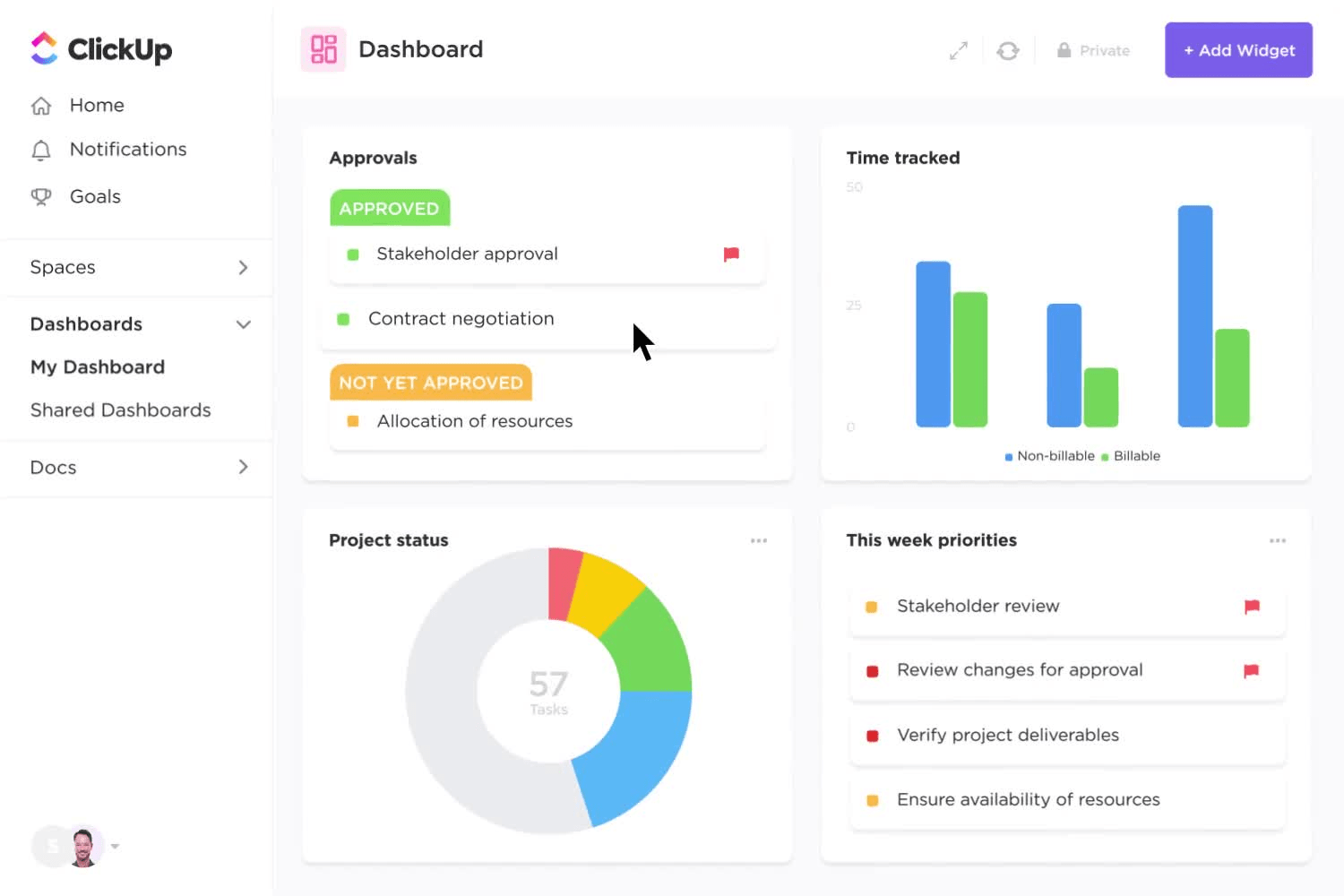
Goals and dashboards. Goals let you set measurable targets (OKRs, sprint points, dollar figures) and roll up progress automatically. Dashboards are ClickUp’s reporting layer — drag-and-drop widgets for burndown charts, workload, time tracked, and custom metrics.
Automations. A no-code “when this, then that” builder handles repetitive busywork: move a task when its status changes, assign an owner, post a comment, or trigger a template. Paid plans include a monthly pool of automation runs.
Time tracking. Built into every task, with a start/stop timer or manual entry, plus the ability to mark time billable — a real advantage for agencies and freelancers who invoice clients.
ClickUp Brain (AI). The AI layer can summarize threads and documents, draft and rewrite text, generate standup updates, answer questions about your workspace, and search across connected tools. In the 4.0 generation it extends into agents that can take on routine workflows. It is capable and improving, but it lives behind a separate add-on rather than being bundled into your base plan.
Integrations. ClickUp connects to the usual suspects — Slack, Google Drive, GitHub, Figma, Zoom, and hundreds more — plus a public API for custom work. Want to see how the pieces fit for your team? You can Try ClickUp and switch on only the features you need.
Plans & pricing
ClickUp keeps its structure simple: four plans, with AI sold separately as an add-on. The paid tiers below reflect annual billing; paying month-to-month costs more per seat.
Free Forever — $0
Surprisingly generous. You get unlimited tasks and unlimited members, plus core views, docs, whiteboards, and basic time tracking. The main limits are on storage (a modest shared cap), automation runs, and some advanced features. For solo users and small side projects it is genuinely usable long-term, not just a trial.
Unlimited — around $7 per member / month
The first paid step removes storage limits, unlocks unlimited dashboards and integrations, adds more automation runs, and opens up features like Goals and resource management. This is the sweet spot for most small growing teams.
Business — around $12 per member / month
Aimed at mid-sized teams that need more horsepower: advanced dashboards, workload and timeline views, granular permissions, more automation runs, and better security controls. If you rely on reporting and manage multiple concurrent projects, this is usually the tier you land on.
Enterprise — custom pricing
For large organizations needing advanced security (SSO, HIPAA compliance), white-glove onboarding, a dedicated success manager, and higher usage limits. Pricing is quote-based, so you contact sales.
ClickUp Brain (AI add-on) — around $9 per member / month
The AI features are not baked into the plans above — you add ClickUp Brain on top for roughly $9 per member per month. There is also a higher AI tier (marketed around $28 per member) that adds more AI capacity, an AI notetaker, and the newer agent features. Budget for this if AI is central to why you are adopting ClickUp, because it can meaningfully change your total.
A quick honesty note on pricing: because AI is an add-on and guest seats and automation overages can nudge the bill upward, the “$7 a month” headline is a floor, not a ceiling. Model your real seat count and add-ons before committing.
How to get the best value / free plan
The smartest way to approach ClickUp is to start free and only pay when you hit a real wall. The Free Forever plan’s unlimited tasks and members mean a small team can run genuine projects without spending anything — the constraints you are most likely to bump into first are storage and automation runs.
When you do upgrade, a few tactics keep costs sensible. Right-size your plan — many teams reach for Business when Unlimited would cover them, so upgrade only when you specifically need advanced dashboards, workload view, or tighter permissions. Be deliberate about seats, since ClickUp is strictly per-member: audit who truly needs a paid seat versus a free guest. Treat the AI add-on as an opt-in decision per team, and commit to annual billing only once you are confident.
If you want to test the full experience risk-free, you can Try ClickUp on the free plan and upgrade later without losing your data.
Watch: ClickUp in action
Reading about a tool this broad only gets you so far. The walkthrough below shows how ClickUp actually looks and feels for a new user setting up their first workspace.
ClickUp vs alternatives
ClickUp’s most common rivals are Monday.com and Asana. All three are excellent, but they optimize for different things. Here is how they stack up on the factors that matter most.
| Factor | ClickUp | Monday.com | Asana |
|---|---|---|---|
| Starting paid price (annual) | Around $7 / user / mo | Around $9 / seat / mo | Around $11 / user / mo |
| Free plan | Unlimited tasks & members | Limited (small seat cap) | Solid, capped members |
| Number of views | 15+ | Multiple, fewer than ClickUp | Core views, fewer advanced |
| Built-in time tracking | Yes, out of the box | Higher tiers | Via integrations |
| Ease of use | Steeper learning curve | Easiest to adopt | Clean and structured |
| Best at | All-in-one consolidation | Visual workflows | Structured task clarity |
The short version: Monday.com wins on visual simplicity and fast adoption for non-technical teams, Asana wins on clean structured project management, and ClickUp wins when you want to replace several tools at once and are willing to invest in configuration to get there.
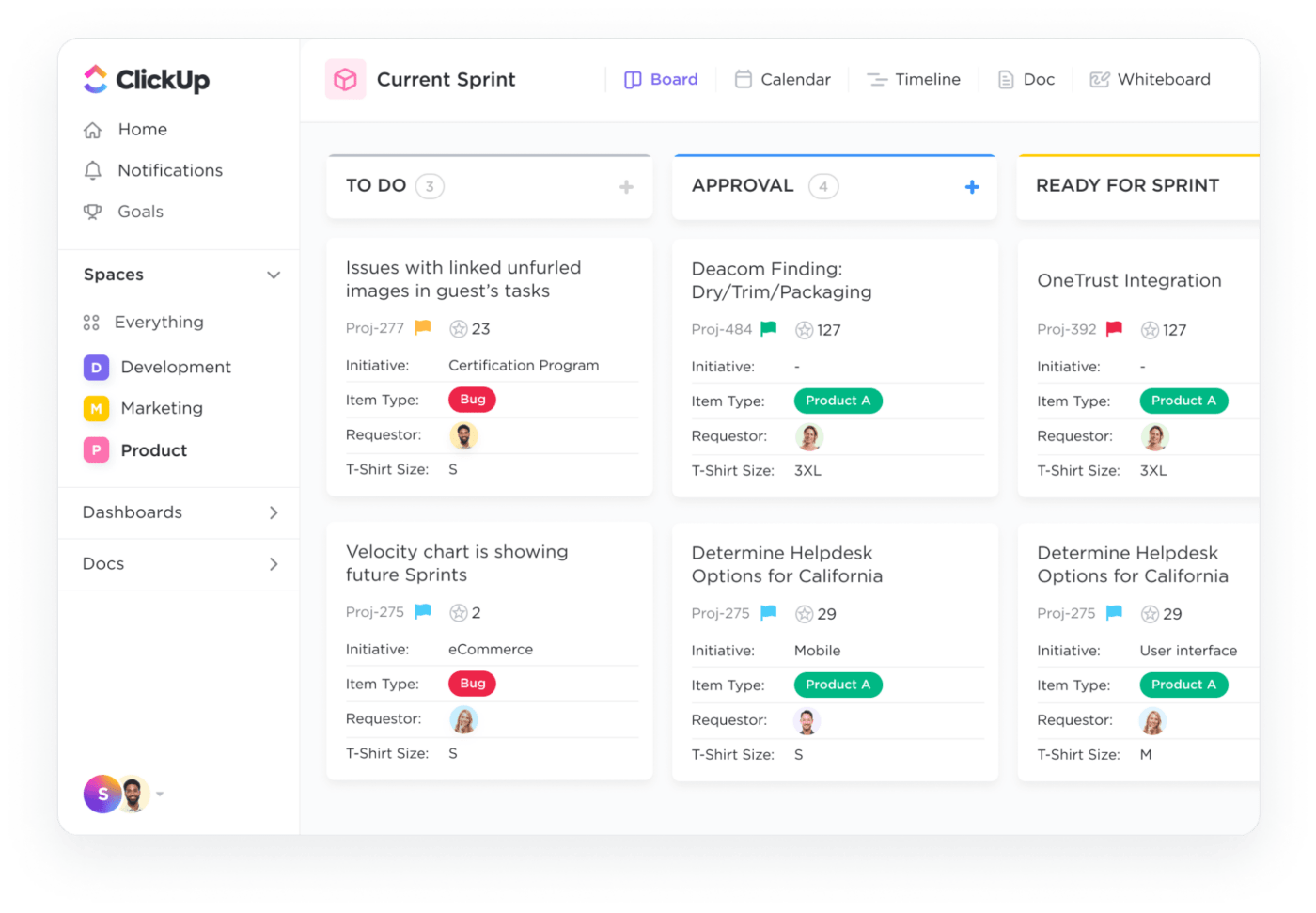
Usability & value
Let us be direct about usability, because it is ClickUp’s defining trade-off. The platform is fast to sign up for and slow to get right. The first week can be overwhelming, because there are settings on top of settings and no single “correct” way to organize things. Teams that succeed with ClickUp almost always have one person who enjoys building systems and takes ownership of the setup: defining the Space structure, creating templates, and establishing conventions so the workspace does not sprawl into chaos.
Once that foundation exists, ClickUp is a joy to use and the value is hard to beat. Consolidating tasks, docs, goals, time tracking, and reporting into one subscription genuinely can replace three or four separate tools, and the math often works out cheaper. For teams that lean into it, the cost per seat buys an unusually large amount of capability.
The flip side of that breadth is performance. Users on review sites and ClickUp’s own feedback board periodically report lag — dashboards that take a beat to load, status changes that feel sluggish on very large workspaces. The company has invested heavily in speed with the 4.0 rebuild, but if you run enormous, heavily automated workspaces it is worth stress-testing first.
Who should use it — and who should not
ClickUp is a great fit if you:
- Currently juggle several tools (a task app, a doc app, a time tracker) and want to consolidate
- Have a team of roughly 10 or more people working across multiple concurrent projects
- Have someone who enjoys configuring systems and will own the setup
- Value deep customization and want to shape the tool around your exact workflow
- Run an agency or freelance practice that needs built-in, billable time tracking
ClickUp is probably not for you if you:
- Want a tool that works perfectly out of the box with zero setup
- Lead a small or non-technical team that will find the options overwhelming
- Only need a simple shared to-do list or a single Kanban board
- Prioritize best-in-class documents above everything else (Notion may suit you better)
- Cannot tolerate any occasional lag on large, complex workspaces
If that first list sounds like your team, it is worth setting up a workspace to see how it feels — you can Try ClickUp and invite a few colleagues to test it together.
Honest limits
No review is complete without naming the things that genuinely frustrate users, so here they are plainly. The learning curve is real and it is the number one complaint across G2, Capterra, and Reddit — ClickUp rewards effort but demands it. Performance can wobble on large or automation-heavy workspaces. AI sits behind a paid add-on, which can feel like a bait-and-switch if you assumed “ClickUp Brain” came included. The mobile app, while capable, is not as smooth as the desktop experience for complex work. And the constant stream of new features, while impressive, occasionally means an interface that shifts under your feet or options you never asked for.
None of these are dealbreakers for the right team — they are the predictable costs of a tool that tries to do this much. But you should walk in with eyes open rather than expecting a frictionless ride.
ClickUp discount codes & deals
ClickUp does not typically run flashy coupon-code promotions the way some smaller tools do, and we will not invent a fake discount here. The most reliable ways to save are structural rather than promotional. Choosing annual billing over monthly lowers your effective per-seat cost meaningfully. Startups and nonprofits should check ClickUp’s dedicated programs, which can offer credits or discounted access. And of course the Free Forever plan remains the biggest “deal” of all for small teams that do not yet need paid features.
The honest best move is to start on the free plan, confirm the tool fits your workflow, and then upgrade to annual billing once you are sure. You can Try ClickUp today and take exactly that path — no code required.
Frequently asked questions
Is ClickUp really free?
Yes. The Free Forever plan is a real, permanent free tier — not a time-limited trial — and it includes unlimited tasks and unlimited members. You will eventually hit limits on storage, automation runs, and advanced features, but many small teams run on it indefinitely.
Is ClickUp hard to learn?
It has a steeper learning curve than simpler tools like Trello or Asana. The flexibility that makes it powerful also makes the initial setup more involved. Most teams get comfortable within a week or two, especially if one person owns the configuration and uses templates to get started.
Is ClickUp Brain (AI) included in the price?
No. ClickUp Brain is a separate add-on, priced at roughly $9 per member per month on top of your plan, with a higher AI tier available for more advanced capabilities. If AI is central to your decision, factor that into your budget.
How does ClickUp compare to Monday.com and Asana?
ClickUp offers the most features and customization and tends to be the best value, but with a steeper learning curve. Monday.com is the easiest to adopt with strong visual workflows, and Asana excels at clean, structured project management. The right pick depends on whether you value breadth (ClickUp), simplicity (Monday), or structure (Asana).
Does ClickUp include time tracking?
Yes, natively. Every task has a built-in timer plus manual entry, and you can mark time as billable — a genuine advantage for agencies and freelancers who invoice clients, since many competitors require an integration for this.
Can ClickUp replace my other tools?
For many teams, yes — it can absorb your task manager, document tool, whiteboard app, time tracker, and reporting dashboards. Whether it fully replaces specialized tools (like a dedicated docs app) depends on how demanding your needs are in each area.
How to pick a project management tool: a quick buyer’s guide
Whether or not you land on ClickUp, choosing project management software comes down to a handful of honest questions. Use this as a checklist before you commit to anything.
1. Start with your real workflow, not the feature list. Map how work actually flows through your team today — where things get stuck, what gets lost, who needs visibility. A tool should fit that reality, not force you to reshape your team around a demo.
2. Be honest about your appetite for setup. Some tools are powerful because they are configurable; others are pleasant because they are opinionated. If nobody on your team wants to own configuration, a simpler, more opinionated tool will serve you better than a flexible one you never finish setting up.
3. Count the true cost, including add-ons. Look past the headline per-seat price. Factor in AI add-ons, guest seats, automation limits, storage, and the jump between tiers. Multiply by your real seat count and by twelve months to see the number that will actually hit your card.
4. Test with a real project, not a toy one. Free plans and trials exist so you can run something real through the tool for a week or two. Invite the actual people who will use it and pay attention to adoption — the best tool is the one your team will genuinely open every day.
5. Check the exits before you enter. Confirm you can export your data and that the tool integrates with the other software you rely on. Avoiding lock-in is easier before you have a year of work living inside a platform.
ClickUp scores well against most of these questions — strong free plan, deep customization, fair pricing, broad integrations — with its main caveat being the setup effort in point two. If that trade-off sounds right for your team, the best next step is simply to try it with a live project and judge for yourself. When you are ready, you can Try ClickUp and put it through its paces.