I’ve spent the last few weeks living inside VEED.io — cutting talking-head videos, generating subtitles in half a dozen languages, cloning my own voice for a dubbed version of a demo, and building an AI avatar clip that I genuinely wasn’t sure I’d be comfortable putting my name on. This review is what came out of that testing, warts and all.
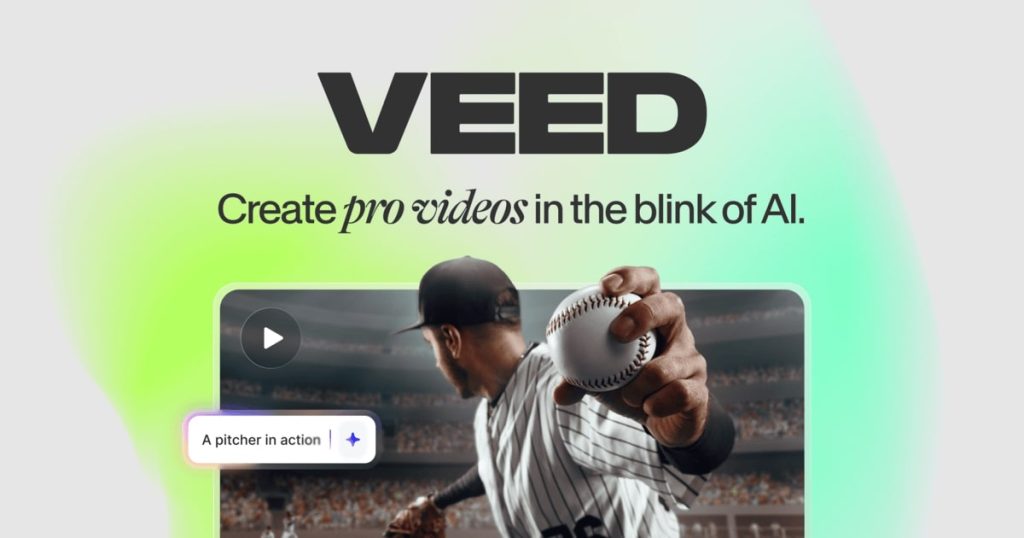
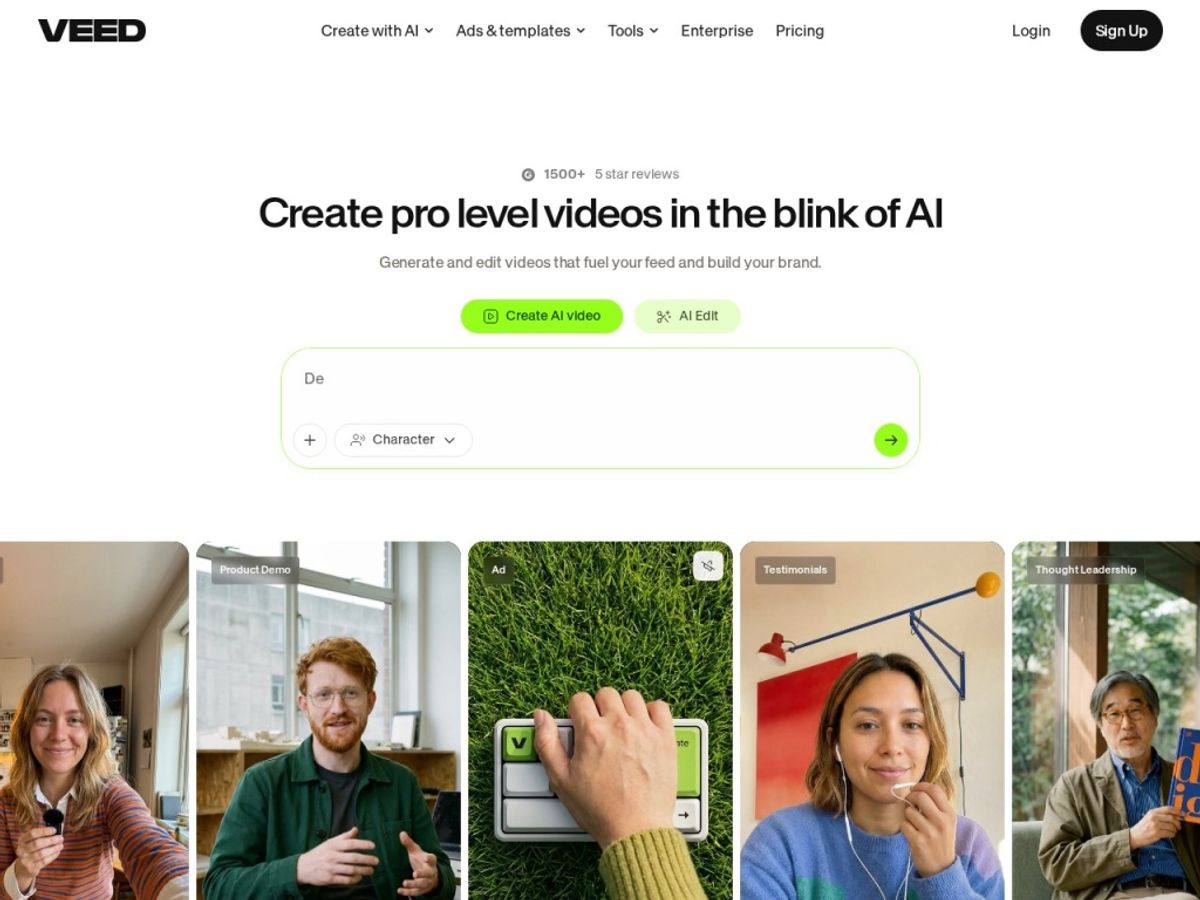
VEED.io is a browser-based video editor that has quietly become one of the go-to tools for creators, marketers, and small teams who need to turn raw footage into polished, captioned, multi-platform-ready video without opening a timeline-heavy desktop app. It leans hard into AI: subtitles that transcribe in seconds, an avatar generator for faceless video, and a translation-and-dubbing engine that can flip an English explainer into Spanish, French, or Japanese with lip-synced audio.
The short version: it’s not the most powerful editor on the market, and it’s not the cheapest, but it might be the fastest way to go from “I have a screen recording” to “I have a shareable video.” If you want to see whether that speed is worth the subscription, try VEED for free and follow along with what I found.
AnalyzeBench Score: 8.3 / 10
Best for: Solo creators, marketers, and lean teams who need fast, browser-based video editing with AI subtitles, translation, and avatar tools baked in — without learning a professional NLE.
What we loved:
- Auto-subtitles are genuinely fast and accurate, even with technical vocabulary and background noise
- AI video translation and dubbing can localize a video into multiple languages in a single workflow
- The browser editor has almost no learning curve — most people can cut a first video in under 15 minutes
- Brand kit and templates make it easy to keep every export on-brand without redoing design work
- Screen recorder and webcam recorder are built directly into the editor, so you rarely need a second app
Watch out for:
- The free plan’s watermark and short export limits will push most regular users toward a paid tier quickly
- AI credits (used for avatars, translation, and some subtitle work) are capped per plan and can run out faster than expected
- Performance can lag on longer, higher-resolution timelines since everything runs in the browser
- Per-seat pricing on team plans adds up fast if you’re adding several editors
- AI avatars still look a little synthetic on longer takes, and lip-sync can drift after 60–90 seconds
What makes VEED different
Most video editors ask you to choose a lane: either you get a real timeline editor (Premiere, DaVinci Resolve) or you get an AI content generator (Pictory, Synthesia). VEED tries to sit in the middle, and for a specific type of user — someone making short-form content, internal training videos, or social clips on a deadline — that middle ground is exactly where the value is.
The thing that stood out most in testing wasn’t any single feature, it was how tightly the AI tools are stitched into the regular editing flow. Subtitles aren’t a separate export step; they live on the timeline as an editable layer. Translation isn’t a standalone tool; it’s a button inside the same project you already built. That integration is what saves the most time, and it’s the part that’s genuinely hard for a legacy editor to bolt on after the fact.
Where VEED is less impressive is raw editing depth. If you need multi-cam sync, advanced color grading, or granular audio mixing, you’ll feel the ceiling quickly. VEED is optimized for speed and shareability over frame-level control, and it’s honest about that trade-off in how the interface is laid out. If speed and AI features are what you’re after, try VEED and see how far the free tier gets you before committing.
The core features
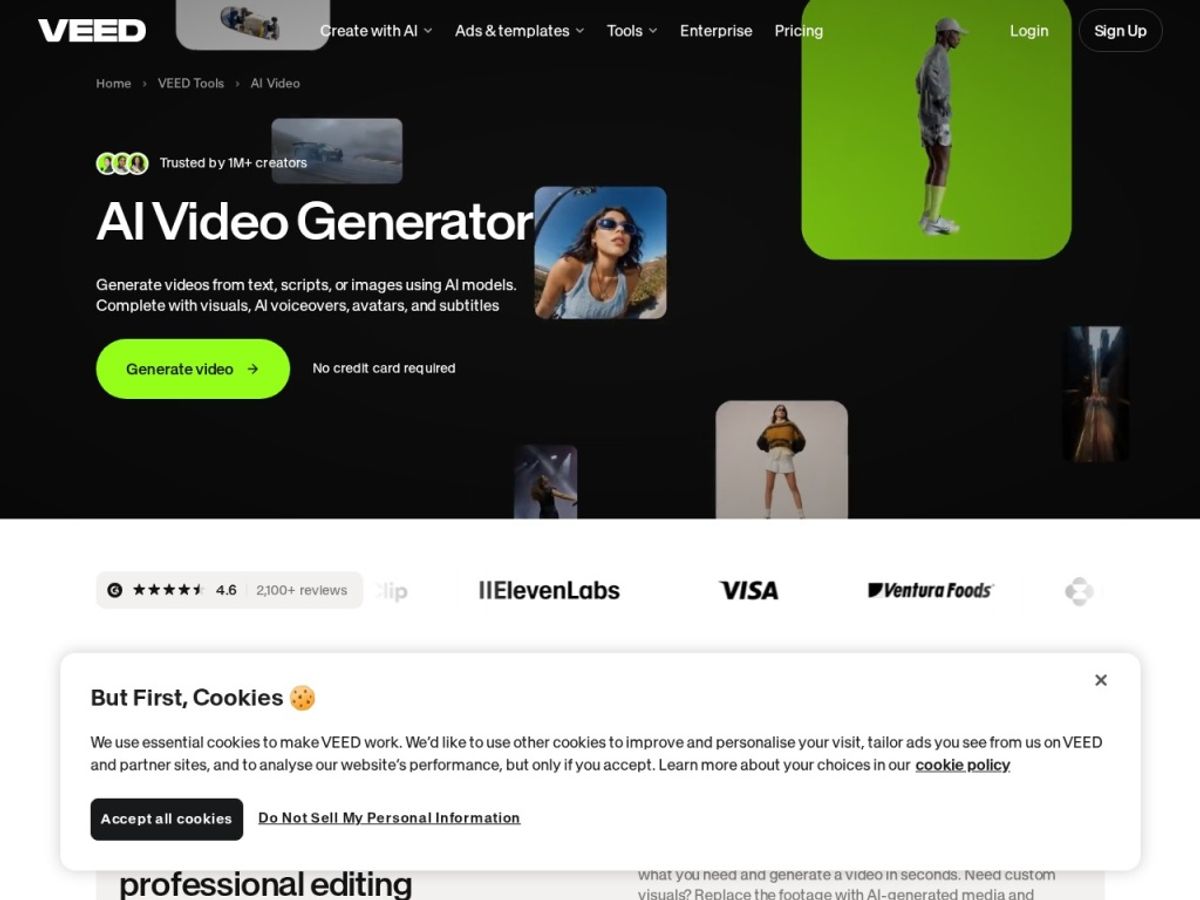
VEED’s feature set is broad, but a handful of tools do most of the heavy lifting. Here’s what actually matters day to day, based on hands-on testing rather than the marketing page.
Browser Video Editor
The core editor runs entirely in Chrome or Edge, no install required, and syncs your projects to the cloud automatically. Drag-and-drop clips onto the timeline, trim with keyboard shortcuts, layer text and stickers, and add transitions — all through a fairly clean, uncluttered UI. It’s not going to replace a professional NLE for complex projects, but for cutting a 2–10 minute video it’s fast, and the auto-save means you’re never worried about losing work mid-edit.
Auto Subtitles & Captions
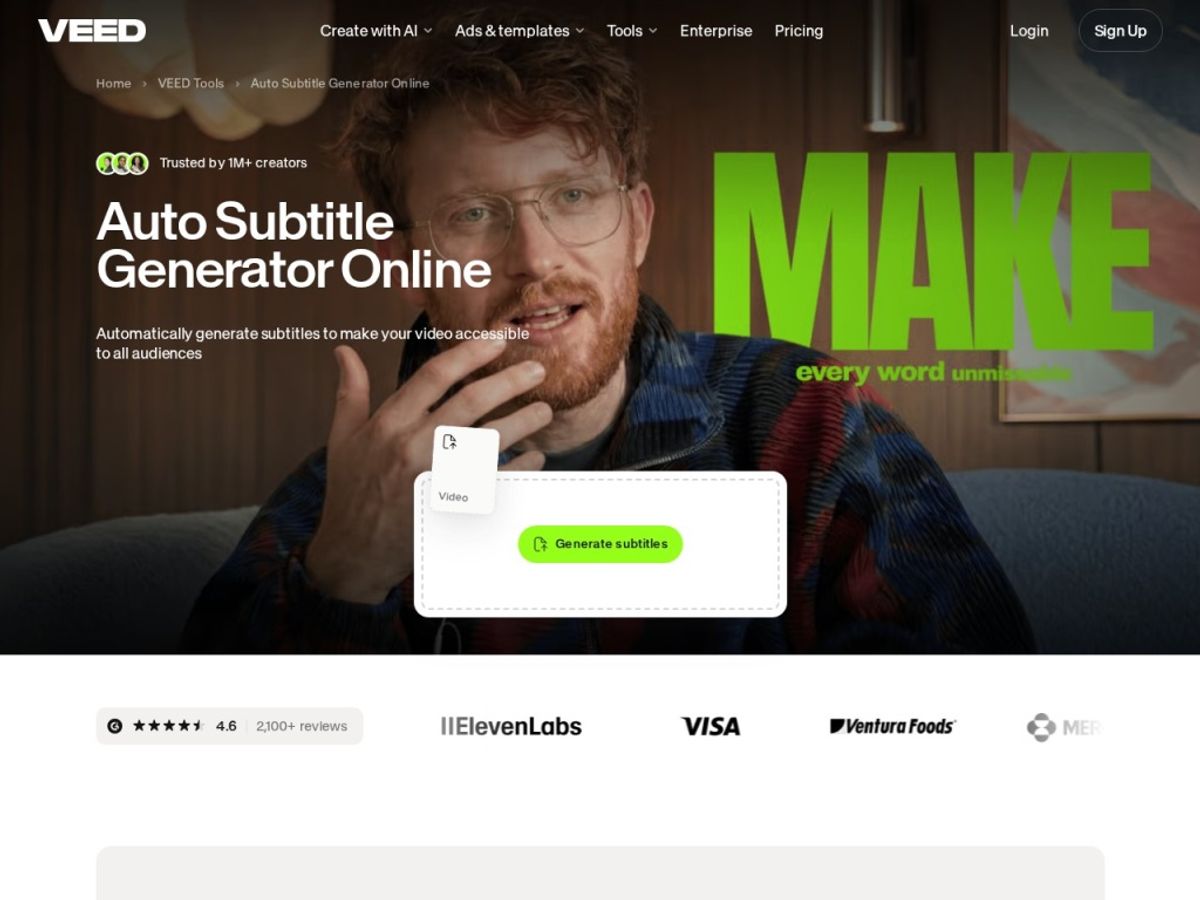
This is VEED’s headline feature and, in our testing, the strongest part of the product. Upload a clip and it transcribes and time-syncs captions in a matter of seconds to a couple of minutes depending on length, with accuracy that held up well even on a video with technical SaaS terminology and some background hum. Captions support 100+ languages, and you can restyle them in one click to match a saved brand template rather than manually repositioning every line.
AI Avatars & Translation
VEED’s AI avatars let you generate a talking presenter from text, no camera required, which is useful for faceless channels or quick internal updates. The avatars are solid but not flawless — longer scripts can show some lip-sync drift and a slightly flat delivery. The translation and dubbing tool is more consistently impressive: it can take an existing video, translate the script, and generate dubbed audio (with optional lip resync) in another language, which is a meaningfully different workflow than just adding translated subtitles.
Screen Recorder
A built-in screen and webcam recorder means you can capture a tutorial or demo and start editing in the same tab, no OBS or third-party capture app needed. It supports picture-in-picture webcam overlay, which is handy for software walkthroughs and course content, and recordings land directly in your project timeline ready to trim.
AI Clip Maker & Eye Contact
The AI clip maker scans a longer video (like a podcast or webinar) and pulls out short-form highlights sized for TikTok, Reels, or Shorts, saving a real chunk of manual scrubbing. The Eye Contact tool digitally corrects gaze so a speaker who was reading a script off-camera appears to be looking straight at the lens — a small feature, but one that noticeably improves the polish of talking-head content shot without a teleprompter.
Brand Kit & Templates
You can save your logo, color palette, and fonts as a brand kit and apply it across projects and templates in a click, which keeps output consistent if multiple people on a team are exporting videos. The template library covers social ads, explainers, YouTube intros, and more, and is a reasonable starting point even if you end up customizing most of it.
Plans & pricing
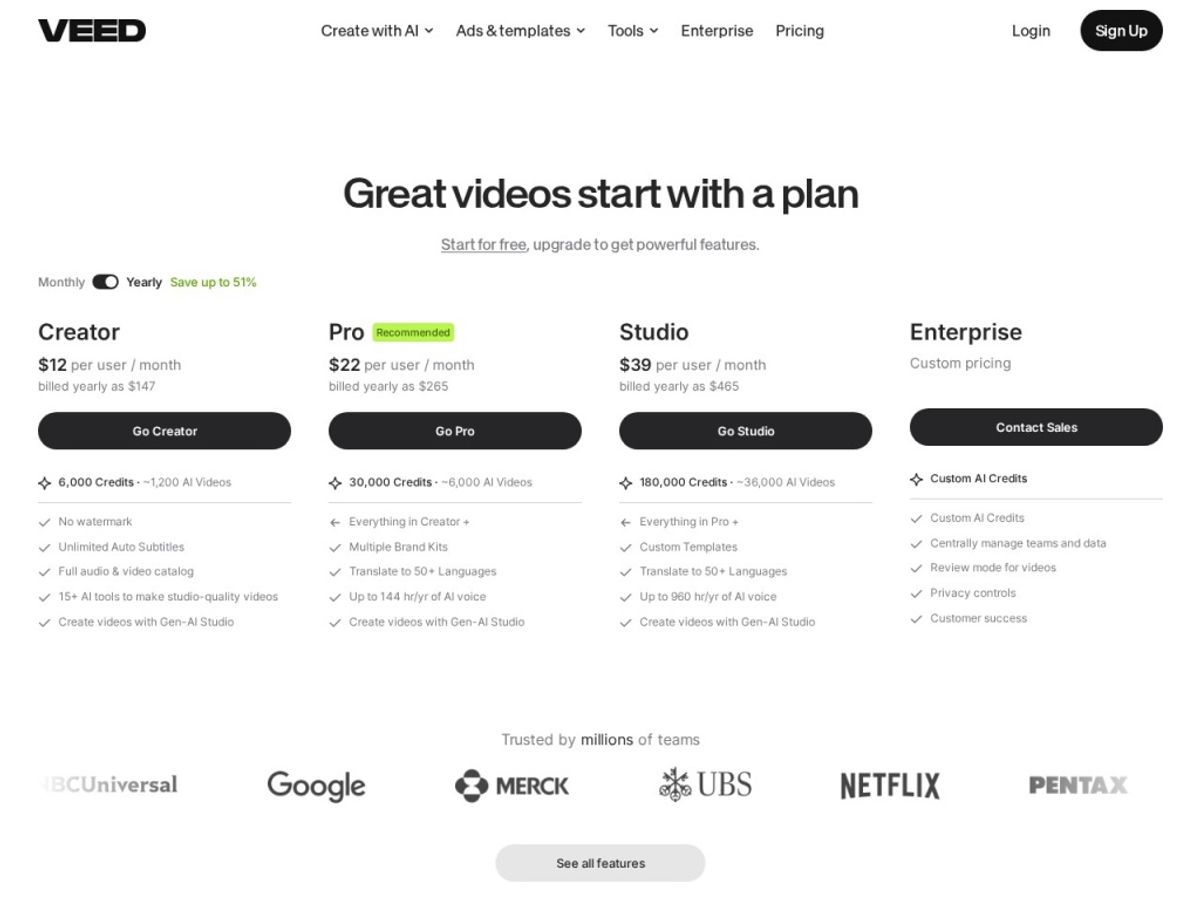
VEED’s pricing has shifted around plan names and AI-credit allotments more than once over the past couple of years, so treat the numbers below as a snapshot rather than gospel — always check the official VEED pricing page before you subscribe, since credit limits and monthly caps are the details most likely to have changed.
Free
The Free plan is a genuinely usable way to test the editor: you get the core timeline, a limited pool of monthly AI credits for subtitles and other AI tools, and exports capped at roughly 10 minutes per video. The catch is a visible VEED watermark on exports and fairly tight limits on AI usage, which makes it better for evaluation than for regular publishing.
Lite
Sitting at roughly $9–12 per month (cheaper on an annual plan), Lite removes the watermark, raises export length and quality limits, and increases your monthly AI credit allowance. This is the realistic entry point for a solo creator or small business posting content regularly.
Pro
Priced around $24–29 per month depending on billing cycle and region, Pro is aimed at people who lean on the AI tools regularly — more AI credits, higher-resolution exports, and access to more of the translation/dubbing and avatar features without hitting a ceiling every few videos. Most serious solo creators and small marketing teams will land here.
Business/Enterprise
Business plans run up toward $59+ per user per month and add team collaboration, more brand kit slots, priority support, and higher AI credit ceilings. Enterprise pricing is custom and typically includes SSO, dedicated support, and higher-volume API or bulk-processing needs — worth a direct conversation with VEED’s sales team rather than guessing from the public page.
Whatever tier makes sense for your workload, it’s worth starting from the Free plan and upgrading only once you’ve hit a real limit — that’s the cheapest way to find your actual usage pattern before you commit to a monthly cost.
How to get the best value
A few practical things that changed how much I paid (and how much I got out of the plan I picked):
Annual billing consistently knocks a meaningful chunk off the monthly-equivalent price across every paid tier, and since most people who stick with VEED end up using it for months at a time, the annual commitment is usually worth it once you’re past the trial phase. Start on monthly, confirm you’re actually using the AI credits and export limits, then switch to annual for the discount.
Use the Free plan aggressively before paying for anything — it’s enough to fully test the editor, subtitle quality, and export workflow on a couple of real projects, not just a demo clip. Pay attention to how fast you burn through AI credits specifically, since that (not the editor itself) is usually what forces an upgrade.
If your team only needs AI subtitles and basic cutting, Lite is very likely enough — save Pro and Business for when you’re actually using avatars, translation/dubbing, or need the higher export caps regularly. Per-seat pricing on team tiers means it’s worth auditing who actually needs an editor seat versus who just needs to review and approve.
Watch: VEED in action
Reading about an editor only gets you so far — seeing the interface move is what actually tells you whether the workflow fits how you work. Here’s a hands-on walkthrough that shows the editor, AI tools, and export process in real time.
VEED vs alternatives
VEED isn’t the only browser-first editor with AI features, and picking the right one depends heavily on what you’re actually optimizing for — polished dialogue-driven editing, fast social clips, or maximum AI automation. Here’s how it stacks up against two of the most common alternatives we get asked about.
| Tool | Best for | Standout strength | Free option |
|---|---|---|---|
| VEED | Creators & teams needing fast AI subtitles, translation, and avatars in-browser | Tightly integrated AI tools (subtitles, dubbing, avatars) inside one timeline | Yes, watermarked, limited AI credits |
| Descript | Podcasters and dialogue-heavy editors who want text-based editing | Edit video by editing a transcript; strong overdub/voice cloning | Yes, limited transcription minutes |
| CapCut | Short-form social creators on mobile or desktop | Deep TikTok/Reels-style effects and trending templates, very fast exports | Yes, generous for personal use |
Our take: if your priority is AI-assisted localization and captioning at scale, VEED wins. If you’re editing spoken-word content and want to cut by deleting text, Descript’s transcript-based editing is hard to beat. If you’re purely chasing trending short-form effects, CapCut is still free and more nimble for that specific job.
Output quality & value
For the core use case — captioned, on-brand, publish-ready short and mid-length video — output quality is genuinely good. Subtitles sync cleanly, brand kit styling applies consistently, and standard exports look sharp at 1080p. Where quality dips is in the more experimental AI territory: avatars can look a little uncanny on close-up, longer takes, and the eye-contact correction, while useful, isn’t invisible if you look for it.
Whether that adds up to good value depends on how much of your workload is AI-dependent. If you’re mainly using VEED as a fast, clean captioning and cutting tool, even the Lite plan feels like fair value against the time it saves. If you’re leaning heavily on avatars, translation, and dubbing, you’ll want to budget carefully around AI credits, since that’s the part of the pricing that can surprise you mid-month if you’re a heavy user.
Who should use it — and who should not
VEED is a strong fit for solo creators, marketers, course builders, and small internal teams who need to turn raw footage or screen recordings into finished, captioned video quickly, and who value AI shortcuts (translation, avatars, clip extraction) over deep manual control. If your bottleneck has been “editing takes too long” rather than “I need frame-perfect color grading,” this is squarely built for you.
It’s a weaker fit for professional video teams doing heavy color work, complex multi-cam productions, or anyone who needs offline/desktop-grade performance on very long, high-resolution timelines. If your current workflow already runs smoothly in Premiere or Resolve and you’re not missing AI captioning or dubbing, there’s a real chance VEED would feel like a step down in raw editing control rather than an upgrade.
Honest limits
Two things are worth flagging plainly. First, AI credits are the real ceiling on most plans — they gate subtitles beyond a point, avatar generation, and translation, and it’s easy to underestimate how quickly a busy month burns through them. Second, because everything runs in-browser, performance genuinely degrades on longer or higher-resolution projects; if you’re regularly cutting 4K footage over 20 minutes long, expect some lag that a desktop app wouldn’t have.
VEED discount codes & deals
We don’t publish coupon codes we can’t verify, and VEED doesn’t run public promo codes stacked on top of standard pricing as far as we’ve found — so treat any “50% off VEED” code you see elsewhere with skepticism. The reliable, honest discount is simply switching to annual billing, which knocks a real percentage off the monthly-equivalent cost on every paid tier. The best move is to start on the Free plan, confirm the workflow fits, and then move to annual once you know which tier you actually need.
Frequently asked questions
Is VEED.io free to use?
Yes, there’s a genuinely usable Free plan with core editing, limited AI credits, and exports capped around 10 minutes, but exports carry a watermark and AI usage is capped monthly.
Does VEED.io have a watermark on free exports?
Yes. The Free plan adds a small VEED watermark to exported videos; removing it requires upgrading to a paid plan.
How accurate are VEED’s auto-generated subtitles?
In our testing, accuracy was strong even with technical vocabulary and background noise, generally landing in the mid-90% range, though results vary with audio quality and accent.
Can VEED translate and dub videos into other languages?
Yes, VEED’s AI translation and dubbing tool can translate a script and generate dubbed audio (with optional lip resync) in a range of supported languages, on top of standard subtitle translation.
Is VEED good for beginners with no editing experience?
Yes, this is one of its biggest strengths. The interface is simple enough that most first-time users can produce a captioned, trimmed video within their first session.
How does VEED compare to CapCut or Descript?
VEED leans more heavily into integrated AI (captioning, translation, avatars) than CapCut’s effects-first approach, while Descript’s transcript-based editing is a better fit for dialogue-heavy podcast or interview content.
Does VEED offer a free trial of paid plans?
VEED’s own FAQ addresses trial availability directly on its pricing page, and terms can change — check the current VEED pricing page before subscribing to confirm what’s currently offered.
How to get great results from any online video editor
Shoot with captions in mind: Leave a little extra headroom in your frame so auto-generated subtitles don’t cover important visuals, especially on vertical formats.
Clean audio first: AI transcription and dubbing tools are only as good as the source audio — a cheap lav mic will outperform a laptop mic in accuracy every time.
Build a brand kit before you scale up: Setting fonts, colors, and logo placement once saves far more time than manually restyling every export later.
Batch your AI-heavy tasks: Group subtitle generation, translation, or avatar renders into single sessions so you can monitor credit usage rather than burning through your monthly allowance piecemeal.
Export a test clip before the full video: Especially with AI avatars or dubbing, render a 15–30 second sample first to catch lip-sync drift or styling issues before committing to a full-length export.